How it works
Every step from choosing your drive to the finished flash. Nothing is written until you confirm and hold to flash. The screens show the current app with synthetic example drives and sessions.
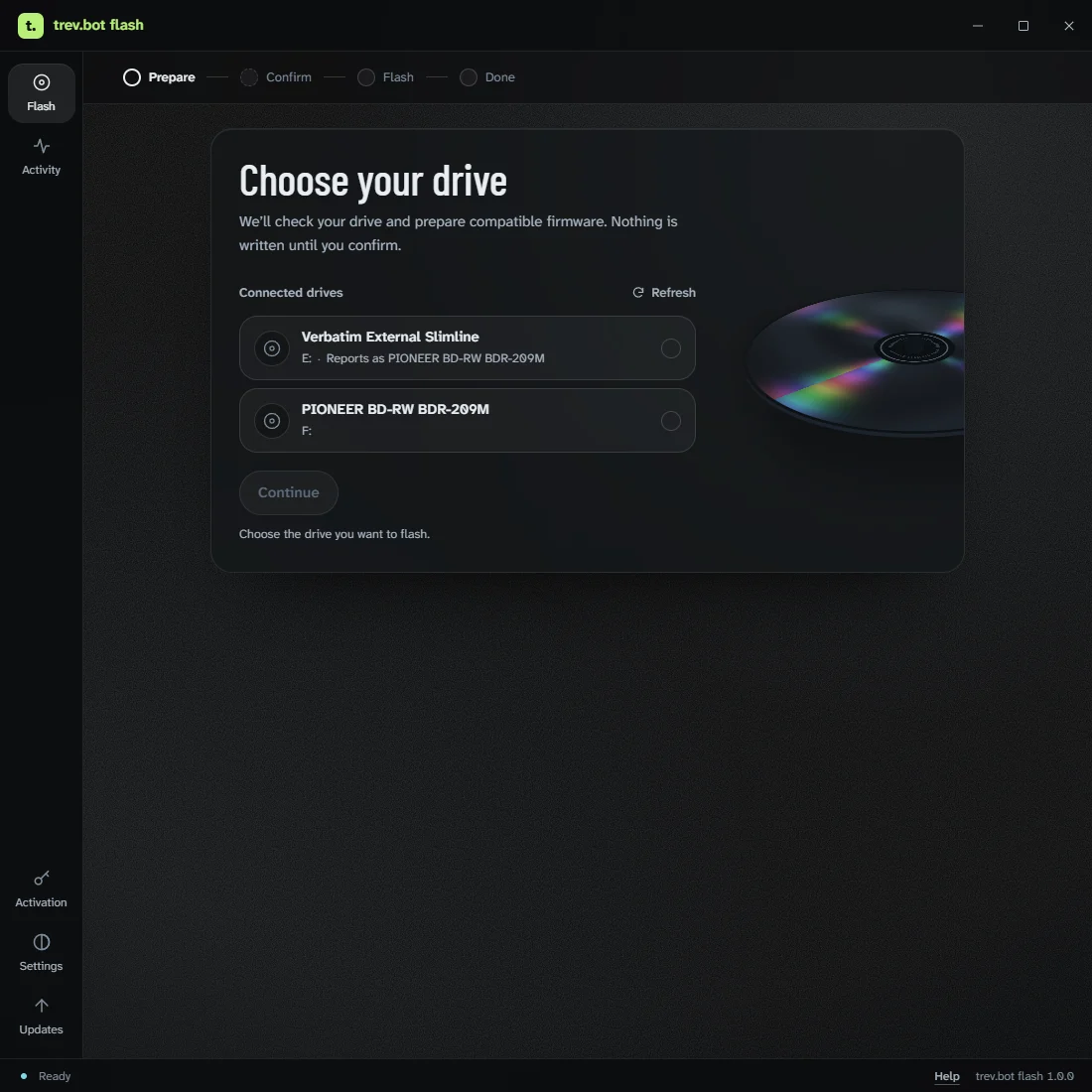
Choose your drive
Connect your empty drive. The app lists the drives it finds, with the name your computer gives each one and the model it reports. When there’s only one, it’s chosen for you.
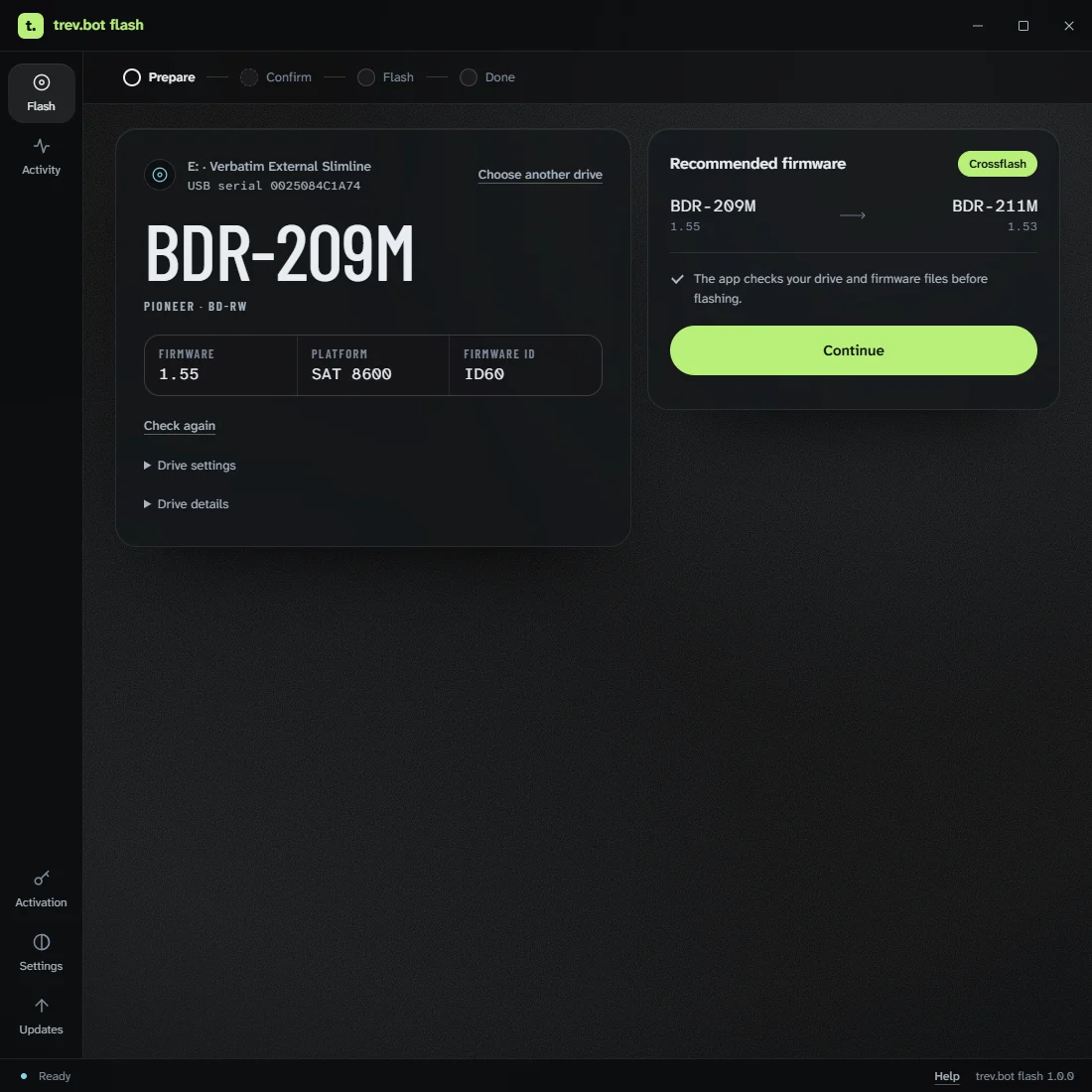
Check
No activation code needed. The app reads your drive’s model and firmware and tells you whether a flash is available.
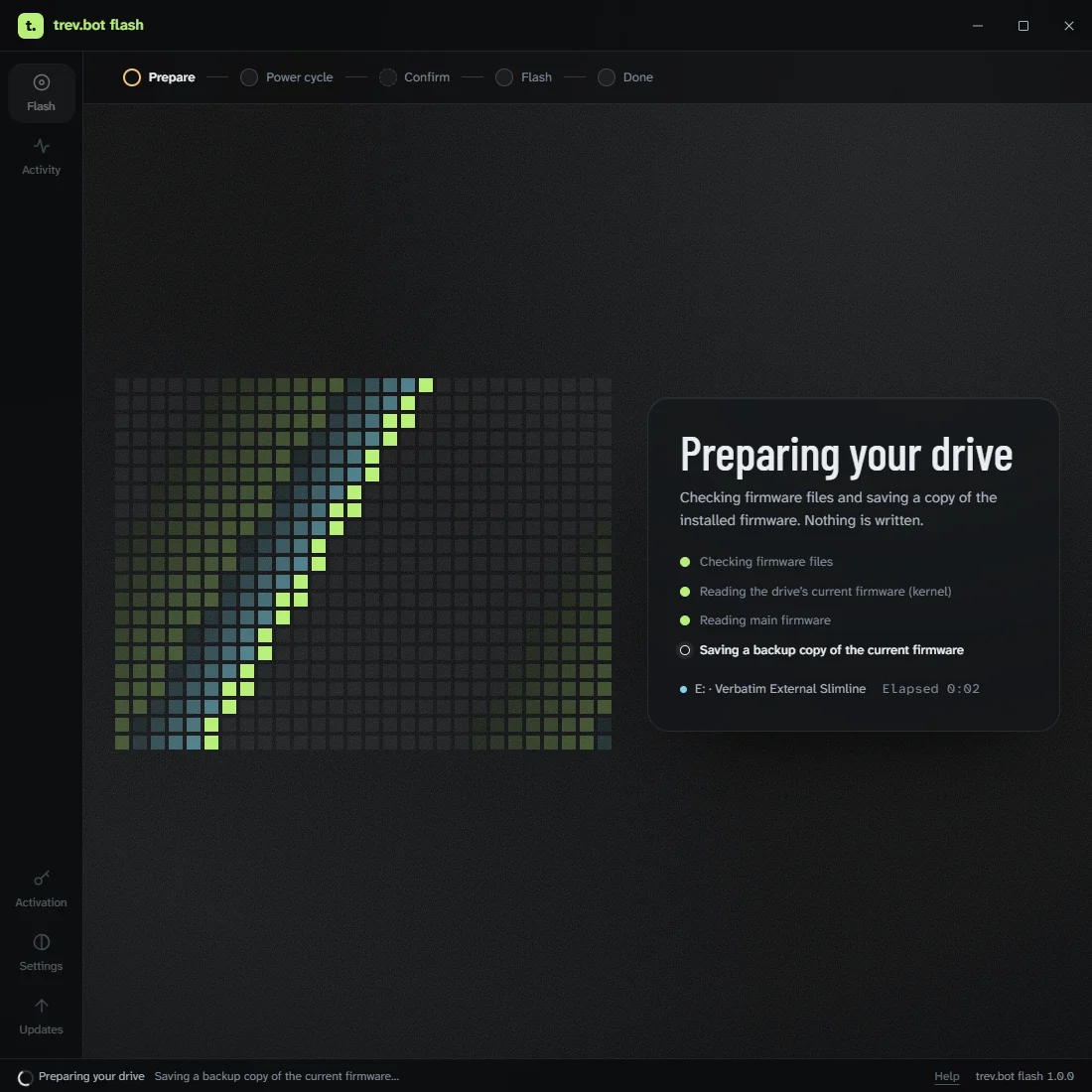
Prepare
Activate the app if prompted. It downloads compatible firmware and checks the files and drive. Nothing is written yet.
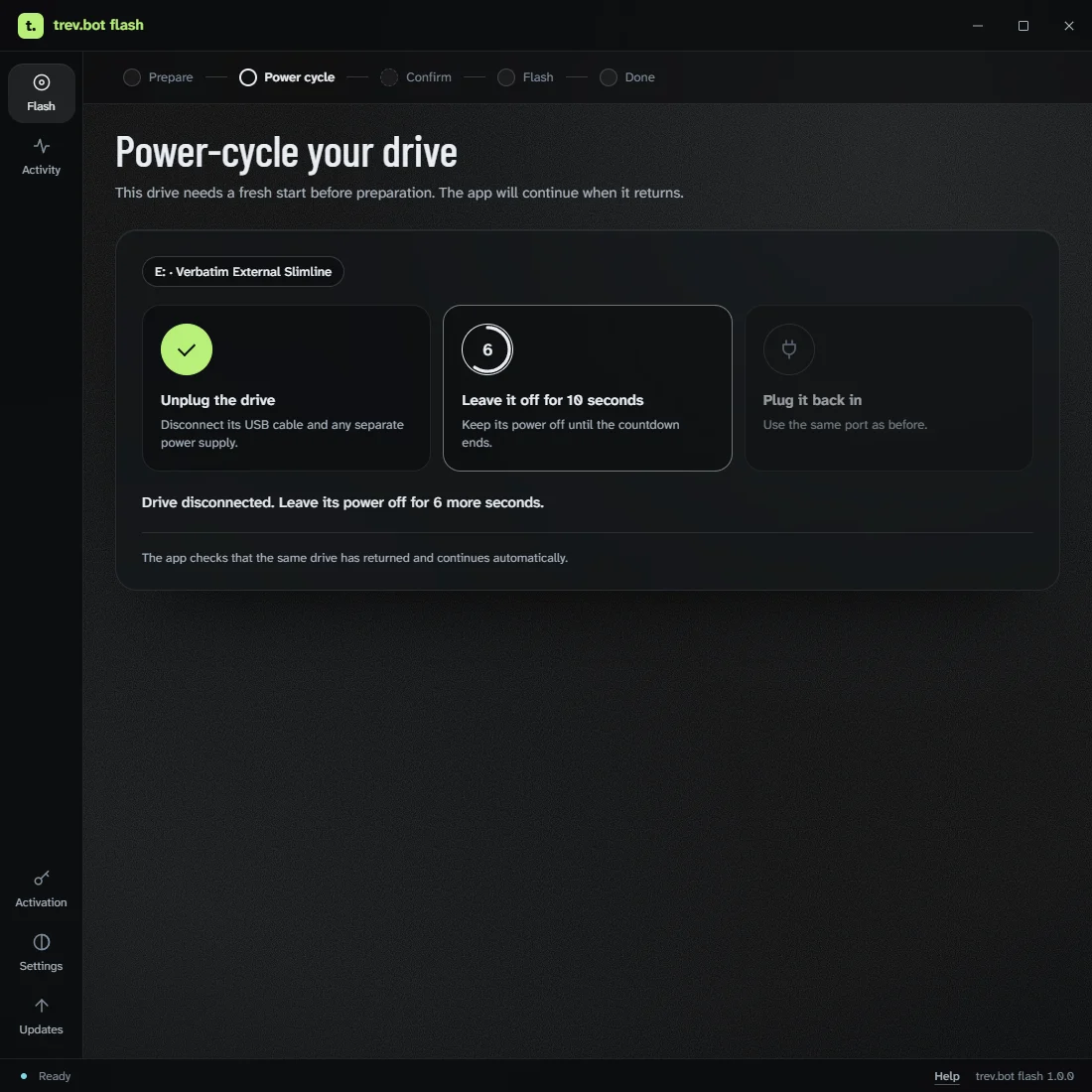
Power cycle, if asked
Some drives need a fresh start before the flash. The app shows what to unplug, counts down while the power is off and continues when the same drive returns. If a different drive or port appears, it tells you.
Confirm
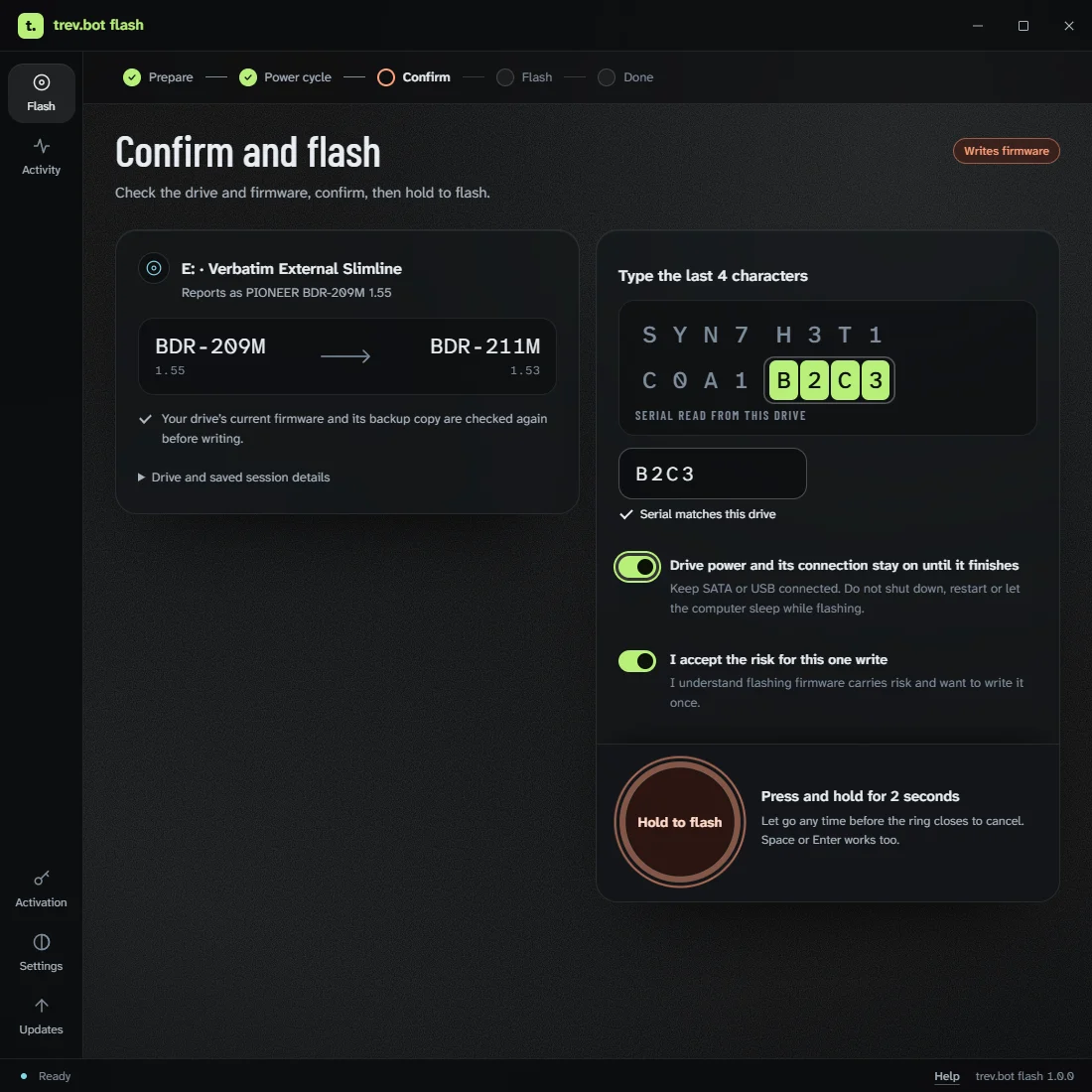
Review the drive and firmware, complete the confirmations shown, and accept the risk of flashing. Then press and hold to flash; let go before the ring closes to cancel.
Flash
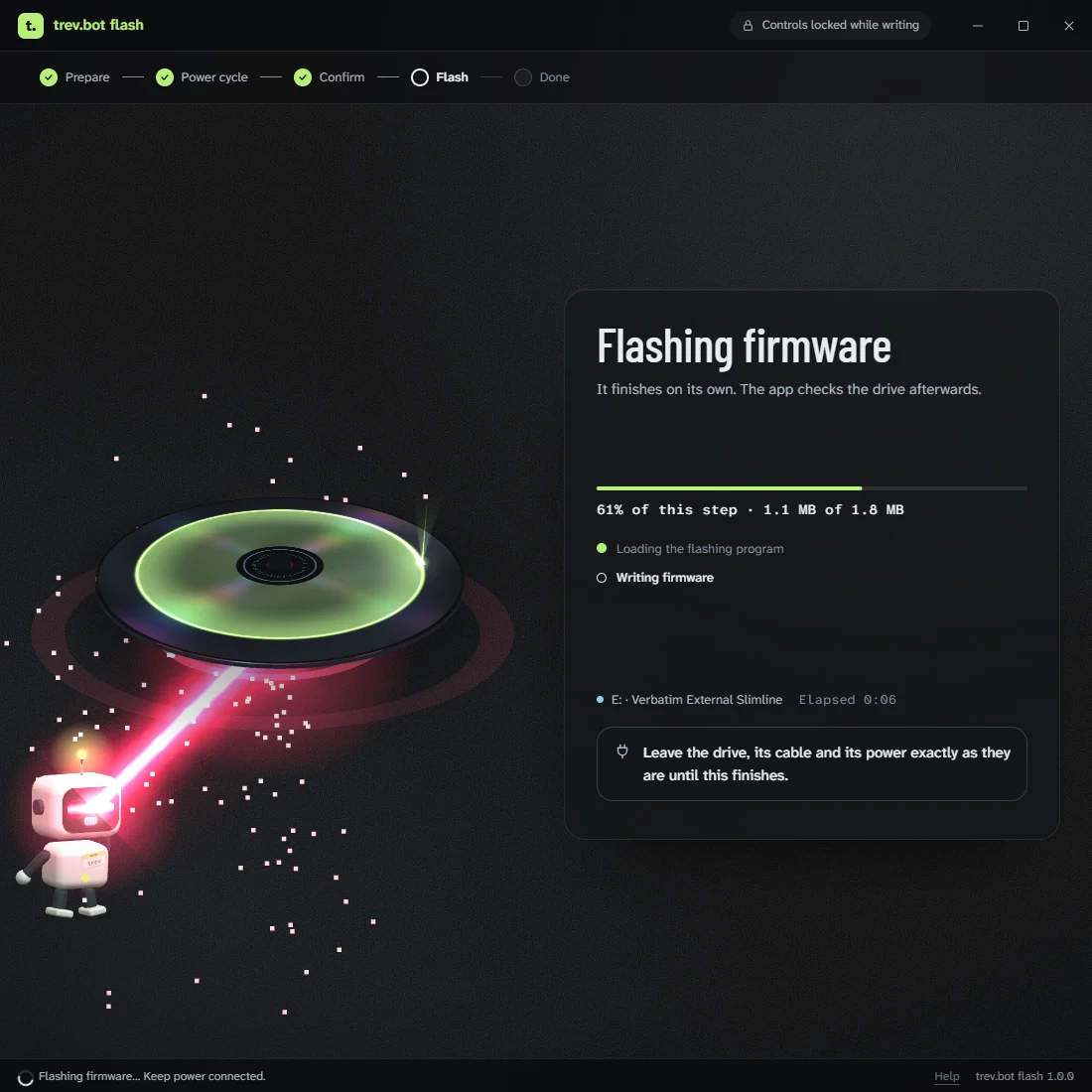
The app writes the firmware, lets the drive settle and checks it afterwards. The controls lock while it writes. Leave the drive, its cable and its power exactly as they are.
Flash complete
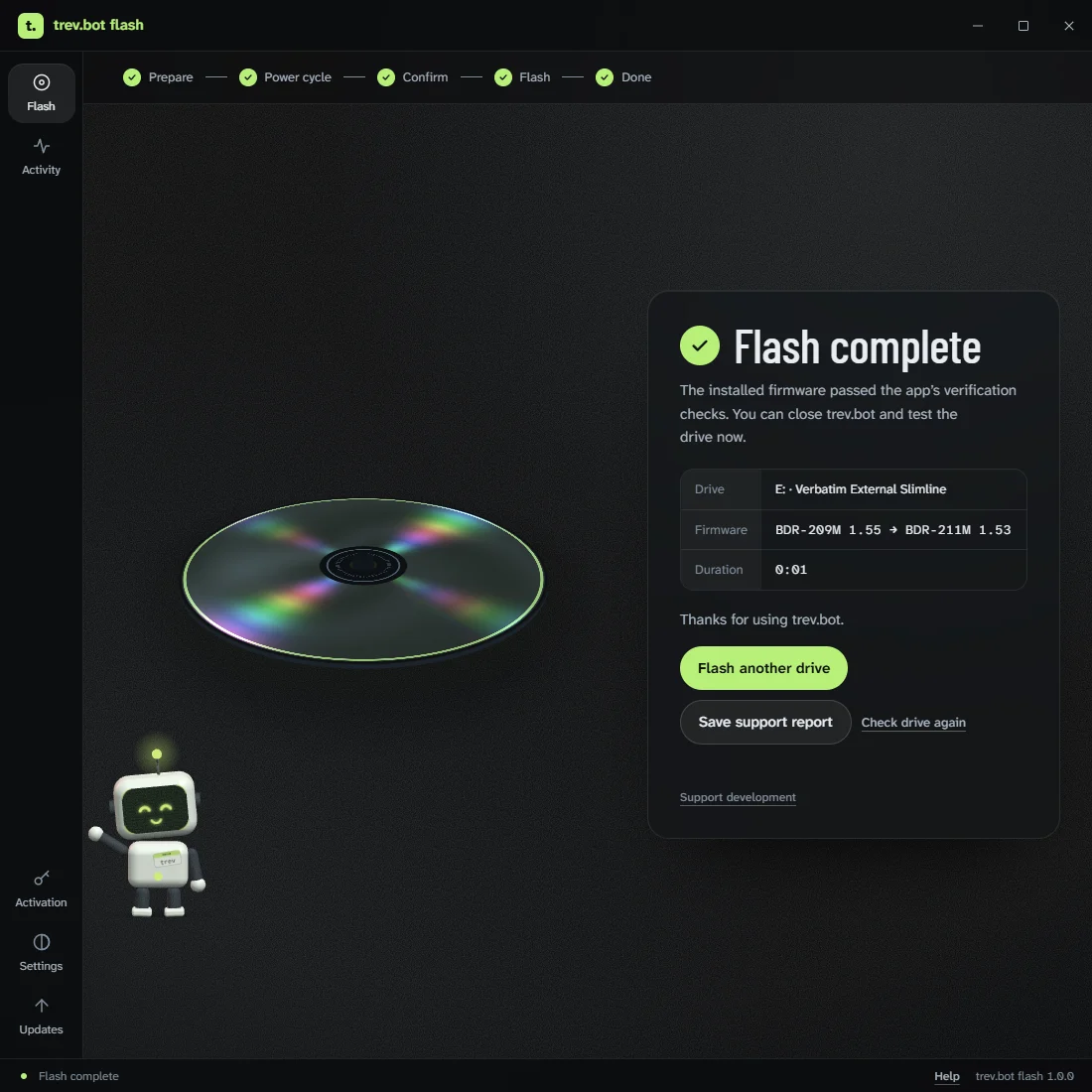
Follow the app’s final instructions, then test the drive with your discs. If a final check is pending, follow the guidance shown before closing the app. You can save a support report for your records.
Activity
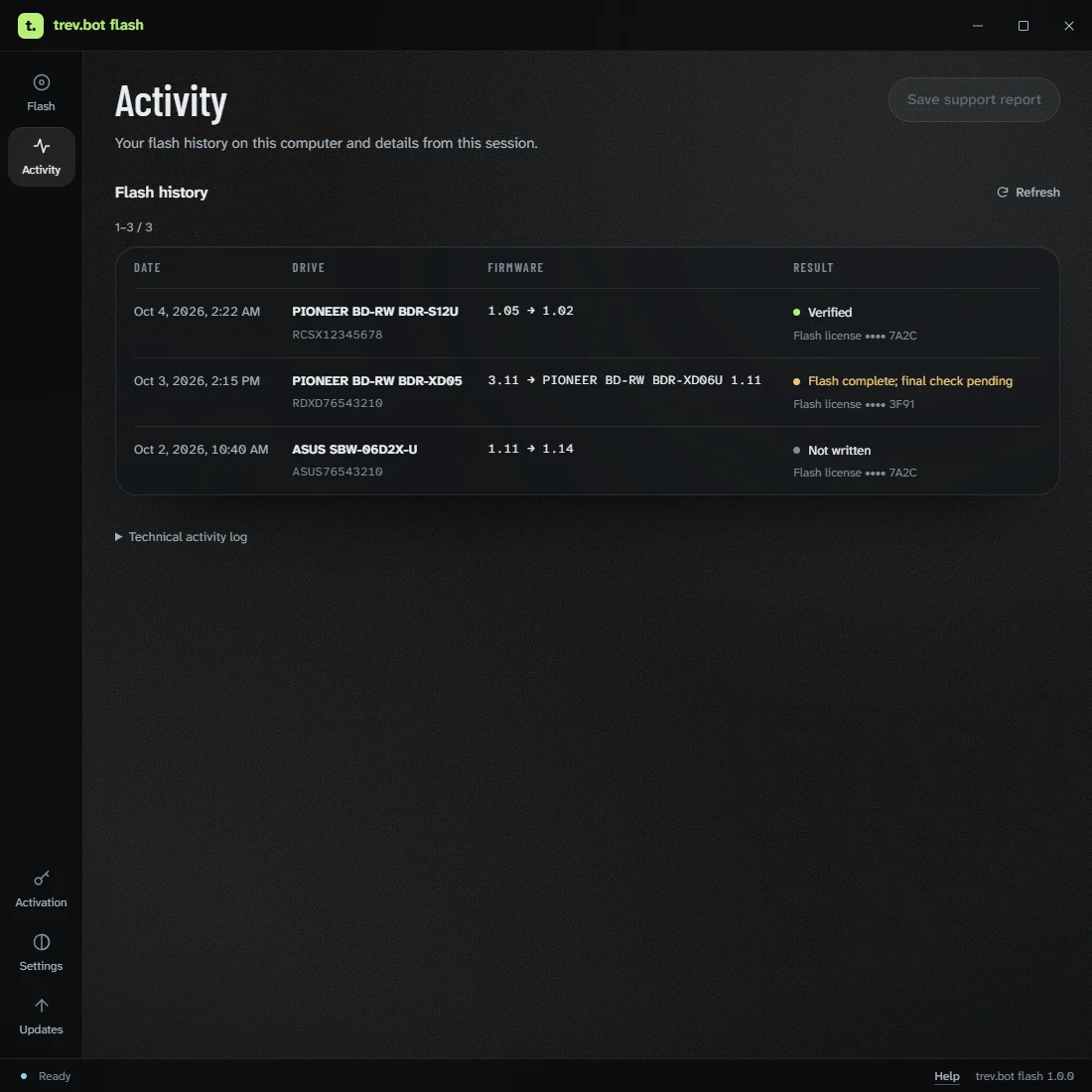
A history of the flashes on this computer, with each drive, firmware change and result.
Ready when you are
Download the app, connect your drive and run the check. If a flash is available, the app walks you through the rest.